How-To-Tutorials · September 23, 2025
Stream 640×480 Video from ESP32-CAM to Browser Using MJPEG over HTTP
Introduction
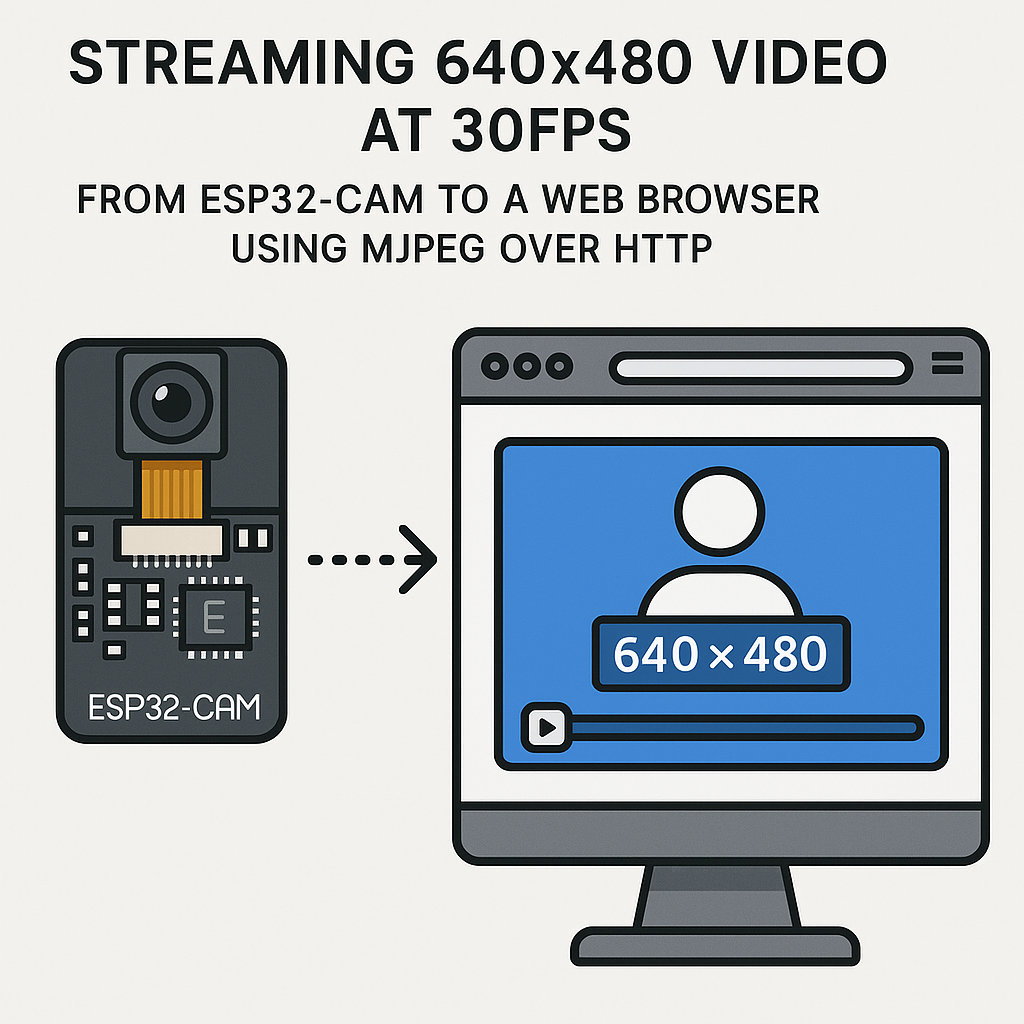
In this tutorial, we will learn how to stream video from the ESP32-CAM module to a web browser using MJPEG over HTTP. We’ll set the video resolution to 640×480 pixels and stream it at 30 frames per second (fps). This project is perfect for IoT applications and provides a great way to monitor environments remotely.
Prerequisites
- ESP32-CAM Module
- USB to TTL Converter
- Jumper Wires
- Arduino IDE installed
- Basic understanding of Arduino programming
Parts/Tools
- ESP32-CAM
- USB to TTL Adapter
- Computer with Arduino IDE
- Wi-Fi Network
Steps
- Set Up the Arduino IDE
- Open Arduino IDE.
- Go to File > Preferences.
- In the “Additional Board Manager URLs” field, add the following URL:
https://dl.espressif.com/dl/package_esp32_index.json - Go to Tools > Board > Boards Manager, search for “ESP32” and install the latest version.
- Connect the ESP32-CAM
- Connect the ESP32-CAM to your USB to TTL converter as follows:
- ESP32-CAM GND to USB-TTL GND
- ESP32-CAM VCC to USB-TTL 5V
- ESP32-CAM U0R to USB-TTL TX
- ESP32-CAM U0T to USB-TTL RX
- Connect GPIO 0 to GND for programming mode.
- Plug the USB to TTL converter into your computer.
- Connect the ESP32-CAM to your USB to TTL converter as follows:
- Upload the Code
- Open a new sketch in Arduino IDE and paste the following code:
#include "esp_camera.h" #define CAMERA_MODEL_AI_THINKER #include "camera_pins.h" void startCameraServer() { // Start streaming // Your streaming code here } void setup() { Serial.begin(115200); camera_config_t config; config.ledc_channel = LEDC_CHANNEL; config.ledc_timer = LEDC_TIMER; config.pin_d0 = 32; config.pin_d1 = 33; // Configure other camera pins... config.xclk_freq_hz = 20000000; config.frame_size = FRAMESIZE_VGA; // 640x480 config.jpeg_quality = 12; config.fb_count = 2; esp_err_t err = esp_camera_init(&config); if (err != ESP_OK) { Serial.printf("Camera init failed with error 0x%x", err); return; } startCameraServer(); } void loop() { // Do nothing here } - Replace the `// Your streaming code here` comment with:
startCameraServer(); - Set your Wi-Fi credentials by adding:
const char* ssid = "YOUR_SSID"; const char* password = "YOUR_PASSWORD"; - Compile and upload the code to the ESP32-CAM. Make sure to select the right port and board model.
- Open a new sketch in Arduino IDE and paste the following code:
- Test the Streaming
- Disconnect GPIO 0 from GND and reset the ESP32-CAM.
- Open the Serial Monitor in Arduino IDE and check for the IP address assigned to the ESP32-CAM.
- Open a web browser and enter the IP address like this: http:///.
- You should see the video stream in your browser!
Troubleshooting
- Cannot Connect to Wi-Fi: Double-check your SSID and password.
- Camera Initialization Failed: Ensure all connections are correct and that the camera is powered properly.
- No Video Stream: Make sure that the ESP32-CAM is connected to the same network as your computer.
Conclusion
Congratulations! You have successfully set up an ESP32-CAM to stream video at 640×480 resolution and 30fps using MJPEG over HTTP. You can use this setup for various applications such as monitoring your home or implementing a security camera. Explore further by adding features like motion detection or recording capabilities!