How to Use STM32 TIM1 PWM with DMA for LED Fading and Motor Control
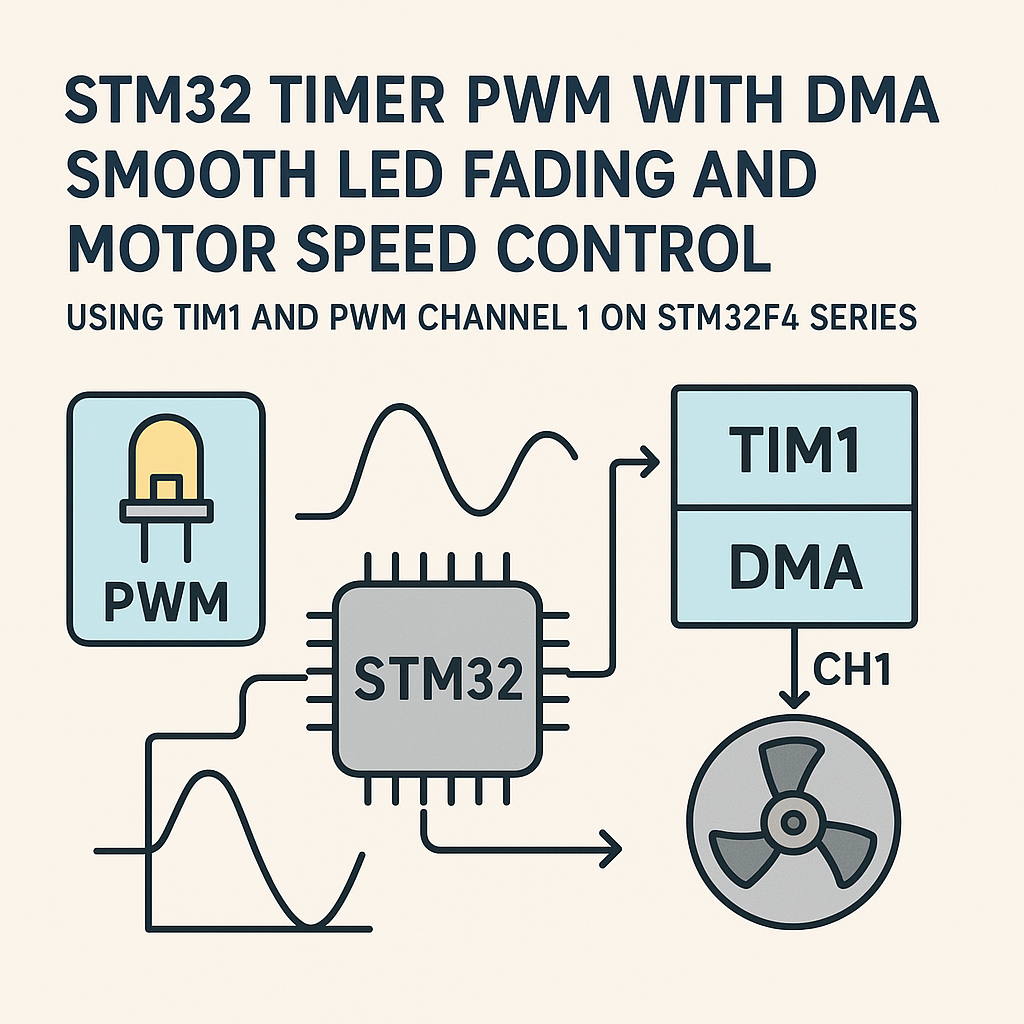
Why PWM + DMA?
PWM on its own is fine for setting a static duty cycle. But if you want smooth LED fading or dynamic motor speed profiles, you need to constantly update that duty cycle—and doing it in a loop or with interrupts eats CPU time. DMA solves this by streaming a buffer of duty cycle values straight to the timer’s compare register, zero CPU involvement. Your main loop stays free for actual work.
We’ll use TIM1 Channel 1 on an STM32F4, but the concept applies to any advanced timer on any STM32 family. The HAL calls are identical.
Prerequisites
- Working knowledge of STM32 peripherals and the HAL library
- STM32F4 development board (Discovery, Nucleo, or similar)
- STM32CubeIDE v1.16+ installed
- Comfortable reading C code
Parts and Tools
- STM32F4 board
- LED + 220Ω resistor
- DC motor with driver (L298N or similar H-bridge module)
- Jumper wires and breadboard
Steps
- Project Setup in STM32CubeIDE
- Create a new STM32 project targeting your specific MCU. STM32CubeIDE v1.16+ bundles the latest HAL and CubeMX, so you get the integrated .ioc configurator out of the box.
- Once the project generates, open the .ioc file—this is where all the peripheral config happens.
- Configure TIM1 for PWM
- In the .ioc Pinout & Configuration view, go to Timers > TIM1.
- Set Channel 1 to PWM Generation CH1.
- Under Parameter Settings:
- Prescaler: 83 (this gives you a 1 MHz timer clock on a 84 MHz APB2). Remember, the prescaler value is PSC register + 1, so 83 means divide by 84.
- Counter Period (ARR): 999. Combined with the 1 MHz tick, that’s a 1 kHz PWM frequency—good for LEDs and most DC motors.
- Output Compare Mode: PWM Mode 1 (output is high while counter < CCR).
- Now the DMA part: go to the DMA Settings tab and add a new request. Pick TIM1_CH1 (not TIM1_UP, unless you specifically want update-triggered DMA). Set direction to Memory to Peripheral, data width to Word (32-bit) on both sides, and enable memory increment.
- Configure the GPIO
- CubeMX should auto-assign the TIM1_CH1 pin (PA8 on most F4 boards) to Alternate Function mode. Double-check that GPIO speed is set to High—this reduces edge ringing at faster PWM frequencies.
- For the motor driver, you’ll use this same PWM output. Wire PA8 to the PWM input on your L298N’s enable pin.
- Generate Code and Write the PWM Logic
- Hit Generate Code, then open
main.c. The MspInit for TIM1 is auto-generated, but here’s roughly what it does behind the scenes:
void HAL_TIM_PWM_MspInit(TIM_HandleTypeDef *htim) { if (htim->Instance == TIM1) { __HAL_RCC_TIM1_CLK_ENABLE(); // DMA and GPIO init are handled by the generated code } } - Hit Generate Code, then open
- To start basic PWM (no DMA yet), just call:
- DMA-Driven LED Fading
- Create a buffer of duty cycle values. Each entry maps to one PWM period’s compare value:
#define FADE_STEPS 1000 uint32_t pwmValues[FADE_STEPS]; - Fill it with a ramp (or sine wave, or whatever profile you want):
- Kick off the DMA transfer in circular mode so it loops automatically:
- Motor Speed Control
- For motor control, you often don’t need DMA—you just set the duty cycle directly based on user input or a control loop:
void SetMotorSpeed(uint32_t speed) { // speed: 0 to 999 (maps to 0-100% duty cycle) __HAL_TIM_SET_COMPARE(&htim1, TIM_CHANNEL_1, speed); } - Call
SetMotorSpeed(500)for roughly 50% duty cycle. If you need ramped acceleration (to avoid current spikes), then DMA with a ramp buffer works great here too.
HAL_TIM_PWM_Start(&htim1, TIM_CHANNEL_1);
At this point the LED should light up at whatever duty cycle the CCR defaults to (usually 0, so off). Good—that means the timer config is working.
void FillPWMBuffer(void)
{
    for (uint32_t i = 0; i < FADE_STEPS; i++)
    {
        pwmValues[i] = i; // Linear ramp from 0 to 999
    }
}
FillPWMBuffer();
HAL_TIM_PWM_Start_DMA(&htim1, TIM_CHANNEL_1, pwmValues, FADE_STEPS);
Watch out: if you configured the DMA as "Normal" instead of "Circular" in CubeMX, the fade runs once and stops. For continuous fading, set DMA mode to Circular in the .ioc file.
Also, make sure your buffer is in a memory region the DMA controller can access. On F4 this is usually fine, but on H7 boards you might need to place the buffer in D2 SRAM or disable the D-cache for that region. This trips up a lot of people.
Troubleshooting
- LED not fading smoothly
First suspect: DMA mode is set to Normal instead of Circular. Second suspect: the buffer values don’t span the full ARR range. If your ARR is 999 but your buffer only goes to 100, you’ll barely see the LED turn on.
- Motor not responding
Check that your motor driver’s enable pin is actually receiving the PWM signal. Probe it with a scope or logic analyzer. Also verify the L298N’s input pins (IN1/IN2) are set correctly for direction—the enable pin only controls speed.
- DMA transfer complete callback firing but no output
On TIM1 specifically, you need to enable the main output (MOE bit) because it’s an advanced timer with a break feature.
HAL_TIM_PWM_Start_DMAshould handle this, but if you’re doing manual register setup, add__HAL_TIM_MOE_ENABLE(&htim1); - Build errors with HAL_TIM functions
Make sure TIM and DMA are enabled in your project’s CubeMX configuration. The HAL drivers are only compiled when the corresponding peripheral is activated in the .ioc file.
What’s Next
You now have CPU-free PWM updates running through DMA on TIM1. The LED fades without your main loop lifting a finger, and motor speed control is a single register write away. From here, try replacing the linear ramp with a sine lookup table for smoother perceived LED fading (human eyes respond logarithmically to brightness). For motor control, consider implementing a PID loop that calls SetMotorSpeed() based on encoder feedback—DMA handles the output side while your control loop runs at its own pace.