How to Implement STM32 Bootloader via USB DFU for Firmware Updates
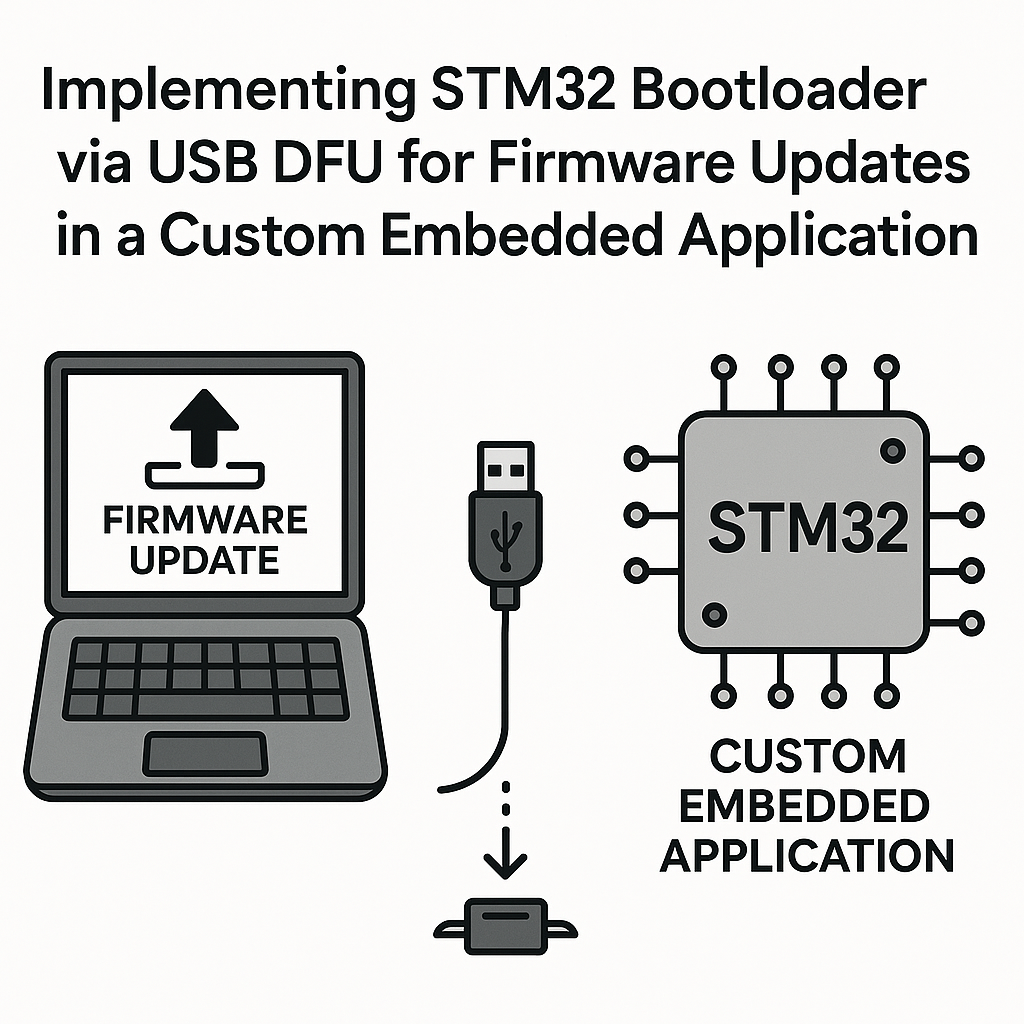
STM32 USB DFU Bootloader for Firmware Updates
Shipping a product without a field-update mechanism is asking for trouble. USB DFU (Device Firmware Upgrade) gives you a standardized way to push new firmware to an STM32 over USB - no debug probe needed. The idea is simple: a small bootloader lives in the first few sectors of flash, checks whether it should enter update mode or jump to the main application, and handles the USB protocol for receiving new firmware images.
This guide covers building a custom DFU bootloader on STM32, setting up the application to coexist with it, and actually performing firmware updates from a host PC.
Prerequisites
- Solid understanding of STM32 memory map and flash layout
- An STM32 board with USB support (STM32F4Discovery, Nucleo-F446RE with USB, etc.)
- STM32CubeIDE v1.16+ installed
- USB cable for connection
- STM32CubeProgrammer or dfu-util installed on your PC
Parts/Tools
- STM32 microcontroller with USB OTG or USB Device peripheral (F4, F7, H5, etc.)
- USB cable (micro-USB or USB-C depending on your board)
- STM32CubeIDE v1.16+
- STM32CubeProgrammer or dfu-util for flashing from the host side
Steps
- Set Up Your Development Environment
- Install STM32CubeIDE v1.16+ from the STMicroelectronics website.
- Create a new project targeting your specific STM32 chip. You'll actually need two separate projects: one for the bootloader and one for the application. Keep them in the same workspace for sanity.
- Plan Your Flash Memory Layout
- Before writing any code, decide how flash is divided. A typical layout for an STM32F4 with 1MB flash:
0x08000000 - 0x08007FFF Bootloader (32KB, sectors 0-1) 0x08008000 - 0x080FFFFF Application (992KB, sectors 2+) - The bootloader starts at the default reset vector (0x08000000). The application starts at 0x08008000. Adjust these based on your bootloader size and your chip's sector layout.
- Watch out: STM32F4 flash sectors aren't uniform size. Sectors 0-3 are 16KB each, sector 4 is 64KB, and sectors 5+ are 128KB. Align your boundary to a sector start or you'll have erase problems later.
- Before writing any code, decide how flash is divided. A typical layout for an STM32F4 with 1MB flash:
- Configure the Bootloader Project
- In CubeMX, enable USB_OTG_FS in Device mode.
- Under Middleware, add USB Device and select DFU class.
- Set the DFU detach timeout and transfer size in the USB descriptor configuration. A transfer size of 1024 or 2048 bytes works well.
- Configure a GPIO input (a button, typically) that the bootloader checks on startup. If the button is pressed, stay in DFU mode. Otherwise, jump to the application.
- Implement the Bootloader Code
The core bootloader logic is the jump-to-application function. This is where most people get tripped up, so pay attention to the order of operations:
#include "usb_device.h"
#include "usbd_dfu.h"

#define APP_ADDRESS 0x08008000U

typedef void (*pFunction)(void);

void JumpToApplication(void) {
    uint32_t appStack = *(__IO uint32_t *)APP_ADDRESS;
    uint32_t appEntry = *(__IO uint32_t *)(APP_ADDRESS + 4);
    pFunction appJump = (pFunction)appEntry;

    // Sanity check: verify the stack pointer looks valid
    // It should point to RAM (0x20000000 region)
    if ((appStack & 0x2FF00000) != 0x20000000) {
        // No valid application found - stay in bootloader
        return;
    }

    // Shut everything down cleanly
    HAL_RCC_DeInit();
    HAL_DeInit();

    // Disable all interrupts
    __disable_irq();
    for (int i = 0; i < 8; i++) {
        NVIC->ICER[i] = 0xFFFFFFFF;
        NVIC->ICPR[i] = 0xFFFFFFFF;
    }

    // Relocate the vector table
    SCB->VTOR = APP_ADDRESS;

    // Set the main stack pointer and jump
    __set_MSP(appStack);
    __enable_irq();
    appJump();
}
The stack pointer sanity check is a trick I always use. If there's no valid application in flash (erased flash is 0xFFFFFFFF), the bootloader gracefully stays in DFU mode instead of jumping to garbage and hard-faulting.
- Build and Flash the Bootloader
- In the linker script (.ld file), constrain the bootloader to its allocated flash region:
FLASH (rx) : ORIGIN = 0x08000000, LENGTH = 32K - Build the project. If it exceeds 32KB, you need to either optimize or allocate more sectors.
- Flash the bootloader using ST-Link via STM32CubeProgrammer. This is the one time you need the debug probe.
- In the linker script (.ld file), constrain the bootloader to its allocated flash region:
- Prepare Your Application Code
The application project needs two key changes from a normal STM32 project:
// 1. In system_stm32f4xx.c, set the vector table offset:
#define VECT_TAB_OFFSET 0x8000

// 2. In the linker script, set the flash origin:
// FLASH (rx) : ORIGIN = 0x08008000, LENGTH = 992K
Then your application code is business as usual:
#include "stm32f4xx_hal.h"

int main(void) {
    HAL_Init();
    SystemClock_Config();

    // Your application code here
    while (1) {
        // Main loop
    }
}
Watch out: if your application uses USB, you must re-initialize the USB peripheral completely. The bootloader's USB state doesn't carry over, and leftover USB state is a common source of mysterious enumeration failures.
- Build and Flash the Application
- Build the application project. The .bin output is what you'll distribute for field updates.
- For initial testing, flash via ST-Link to 0x08008000 using STM32CubeProgrammer.
- For DFU updates, use dfu-util from the command line:
dfu-util -a 0 -s 0x08008000 -D application.bin
- Testing the Bootloader and Application
- Power on with the DFU button released. The bootloader should check the button, find it released, validate the application, and jump. You should see your application running within milliseconds.
- Power on with the DFU button held. The bootloader should stay in DFU mode. Your PC should enumerate a "STM32 BOOTLOADER" USB device.
- Upload a new application binary via dfu-util or STM32CubeProgrammer. Reset the board and verify the new firmware runs.
- Test the edge case: erase the application region and power on. The bootloader should detect no valid application (the stack pointer check) and stay in DFU mode automatically.
Troubleshooting
- Bootloader Not Starting
Verify the bootloader is actually at 0x08000000. Check the boot pins (BOOT0/BOOT1) - they need to select flash boot, not system memory boot. On some Nucleo boards, solder bridges control this.
- USB Not Recognized by Host PC
Check the USB D+/D- connections. If you're using a Nucleo board, make sure the USB connector is actually wired to the MCU's USB peripheral (not just the ST-Link). Install the WinUSB or libusb driver on Windows. On Linux, dfu-util usually just works but you may need udev rules for non-root access.
- Application Doesn't Start After Jump
This is almost always a vector table issue. Double-check that
VECT_TAB_OFFSETmatches your application's actual start address offset. Verify the linker script FLASH origin is correct. Use a debugger to confirmSCB->VTORis set to the right value before the jump. - Firmware Update Fails Midway
Verify the DFU transfer size matches between the bootloader's USB descriptor and the host tool's expectations. Check that the flash erase and write operations in
usbd_dfu_if.chandle your chip's specific sector layout correctly. Add verification (read-back-and-compare) after each page write.
Where to Go From Here
A basic DFU bootloader gets the job done, but for production consider adding firmware integrity checks. At minimum, include a CRC-32 in your application binary header and verify it before jumping. For higher security requirements, look into MCUboot or STM32 Secure Boot, which support signed firmware images - preventing someone from uploading unauthorized code to your devices. You should also consider dual-bank flash layouts (available on STM32H5, H7, and others) that let you keep a working copy of the old firmware while programming the new one, giving you rollback capability if the update fails.