How to Implement Matter over Thread on nRF52840 DK for Smart Home Devices
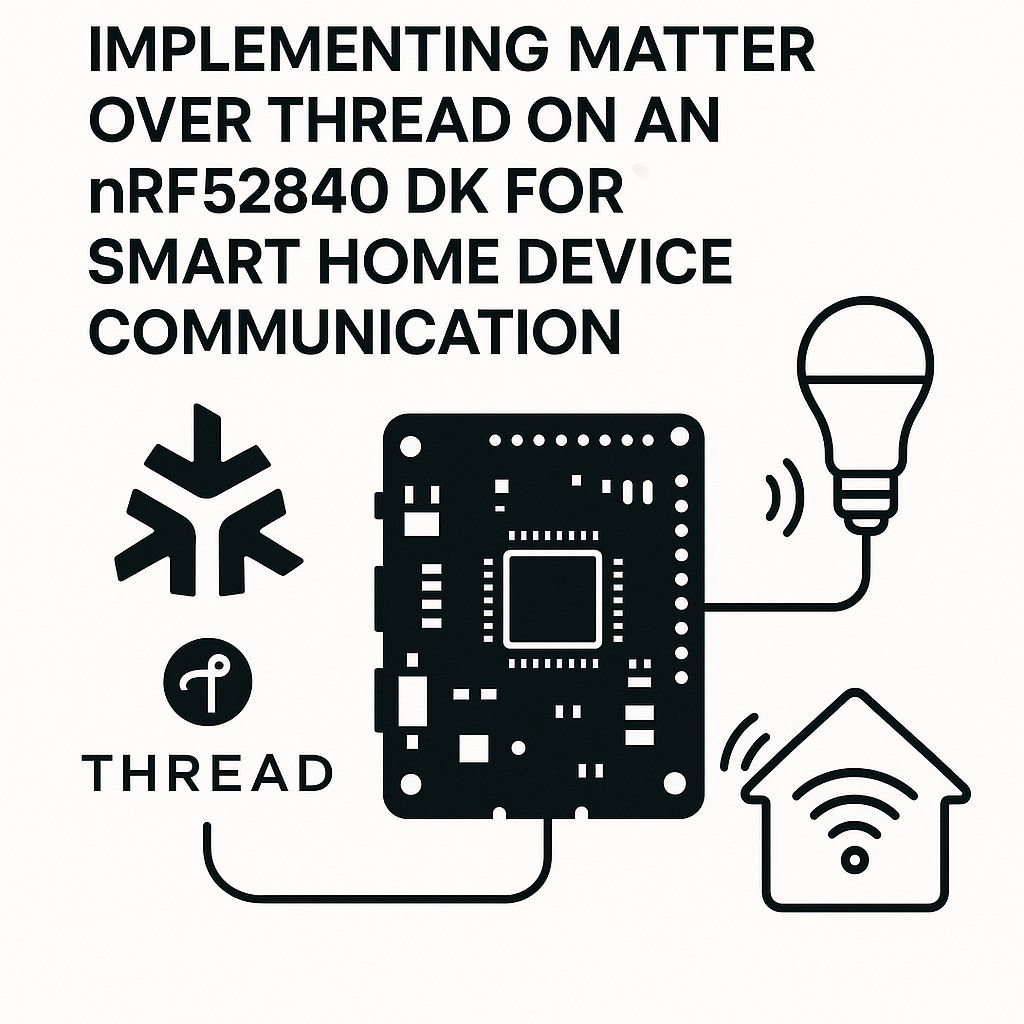
Matter over Thread on nRF52840 DK: Building a Real Smart Home Device
Matter fixes the biggest headache in smart home development: fragmentation. Instead of building separate firmware for HomeKit, Google Home, and Alexa ecosystems, you write one application that talks to all of them. Running it over Thread gives you a low-power mesh network with no single point of failure. The nRF52840 DK is one of the best boards to start with since Nordic has first-class Matter support in their SDK.
This walkthrough gets you from a bare nRF52840 DK to a working Matter device on a Thread network. You'll build with the nRF Connect SDK (which bundles Zephyr RTOS and the Matter SDK), flash the board, and commission it onto your network.
Prerequisites
- Comfortable with C/C++ -- you'll be reading and modifying SDK examples
- Some embedded development experience (flashing boards, reading logs, etc.)
- nRF52840 Development Kit (PCA10056)
- nRF Connect SDK v2.7+ installed via the nRF Connect for VS Code extension
- nRF Command Line Tools (includes nrfjprog and mergehex)
Parts/Tools
- nRF52840 Development Kit
- USB cable for power and programming
- Computer with nRF Connect SDK and VS Code extension
- OpenThread Border Router (OTBR) -- a Raspberry Pi 4 or 5 running the OTBR Docker image works great
- A Matter controller for commissioning (Apple Home, Google Home, or the chip-tool CLI)
Steps
- Set Up Your Development Environment
- Install the nRF Connect for VS Code extension pack. This handles the toolchain, SDK manager, and build system for you. The old Segger Embedded Studio workflow is deprecated -- VS Code with the nRF extension is the way to go now.
- Through the extension's SDK Manager, install nRF Connect SDK v2.7 or later. This pulls in Zephyr RTOS v3.7+, the Matter SDK (connectedhomeip), and OpenThread automatically.
- Set up your OpenThread Border Router. The fastest path: flash a second nRF52840 dongle as an RCP (Radio Co-Processor), plug it into a Raspberry Pi, and run the OTBR Docker container. Nordic's docs walk through this step by step. Without a working OTBR, your Thread device has nowhere to go.
- Build the Matter Light Example
- Start with a known-good sample. In VS Code, use the nRF Connect extension to create a new application from sample. Pick the Matter light bulb example:
- Select the
nrf52840dk_nrf52840board target. The build system (west + CMake) handles all the Thread and Matter library linking -- you don't need to manually add linker flags. - Watch out: the first build takes a long time (15-30 minutes) because it compiles the entire Matter stack. Subsequent builds are much faster thanks to incremental compilation.
nrf/samples/matter/light_bulb - Configure Your Build (Optional Tweaks)
- Open
prj.confin your project. This is where you control Matter and Thread features via Kconfig. Key options: - For development, keep logging enabled (
CONFIG_LOG=y). You'll need those logs when debugging commissioning.
# Enable Thread Sleepy End Device for lower power CONFIG_CHIP_ENABLE_SLEEPY_END_DEVICE=y # Set your Matter device info CONFIG_CHIP_DEVICE_VENDOR_ID=0xFFF1 CONFIG_CHIP_DEVICE_PRODUCT_ID=0x8005 CONFIG_CHIP_DEVICE_PRODUCT_NAME="My Light" - Open
- Build and Flash
- Click "Build" in the nRF Connect extension sidebar, or from the terminal:
- Connect the nRF52840 DK via USB and flash:
- The
--eraseflag does a full chip erase first, which clears any leftover Thread credentials or Matter fabric data. Use it whenever you want a clean slate.
west build -b nrf52840dk_nrf52840west flash --erase - Commission onto Your Thread Network
- Make sure your OTBR is running and has formed a Thread network. You can verify this through the OTBR web interface (usually at port 8080 on your Pi).
- The nRF52840 advertises itself over Bluetooth LE for commissioning. Use one of these controllers to bring it onto the network:
- chip-tool (CLI, good for development):
chip-tool pairing ble-thread <node-id> <thread-dataset> 20202021 3840 - Apple Home: Scan the QR code from your device's Matter onboarding payload
- Google Home: Add device → Matter-enabled device
- chip-tool (CLI, good for development):
- The default setup code for Nordic samples is
20202021with discriminator3840. Change these inprj.conffor production.
- Test the Matter Communication
- With chip-tool, toggle your light device:
- Watch the serial console output (115200 baud) to confirm commands are received. You should see the on/off cluster handling the request.
- If you're using a phone-based controller, the light should appear as a controllable device in the app.
chip-tool onoff toggle <node-id> 1
Troubleshooting
- BLE advertising not visible: Press Button 4 on the DK to trigger a factory reset, which restarts BLE advertising. Also confirm your phone or controller has Bluetooth enabled.
- Build errors with Matter SDK: SDK version mismatches are the usual culprit. Make sure your nRF Connect SDK, toolchain, and Zephyr versions all come from the same release. The SDK Manager handles this if you don't mix versions manually.
- Thread network join fails: Verify your OTBR is reachable and that the Thread dataset you're passing to chip-tool matches the active dataset on the border router. Use
ot-ctl dataset active -xon the Pi to get the hex-encoded dataset. - Commissioning times out: This usually means the BLE connection succeeded but Thread credential provisioning failed. Check that the OTBR has a valid IPv6 prefix and that your network allows mDNS traffic.
- Device unresponsive after commissioning: Open the serial console and look for Matter event logs. A common issue is running out of RAM with logging and debugging both enabled -- try reducing log verbosity.
Where to Go From Here
You now have a Matter 1.4-compatible light device running over Thread on the nRF52840. From here, you can swap out the light bulb cluster for other device types (sensors, door locks, thermostats), add OTA update support, or start building a multi-device mesh. I'd recommend exploring the Matter device data model next -- understanding clusters, attributes, and commands is what separates demo projects from real products.