How to Implement an MQTT Client on ESP32 with wolfSSL for Secure IoT TLS
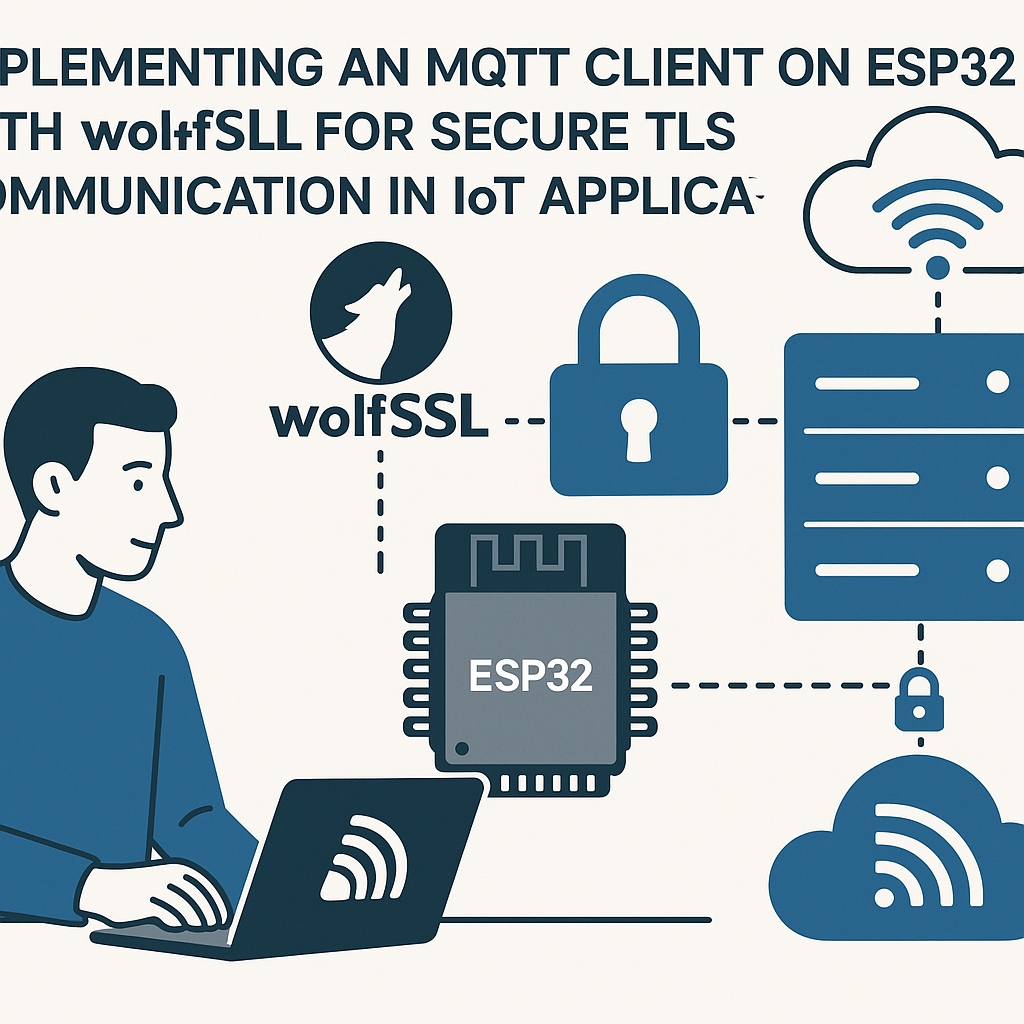
Secure MQTT on ESP32: Why wolfSSL?
The ESP32 already includes mbedTLS in its IDF stack, and the Arduino core wraps it via WiFiClientSecure. So why bother with wolfSSL? A few reasons: wolfSSL supports TLS 1.3 out of the box (mbedTLS on the ESP32 Arduino core has lagged on this), it has a smaller memory footprint when configured correctly, and it's FIPS 140-2 certified if you ever need that for a commercial product. If your project needs TLS 1.3 or you're targeting a compliance requirement, wolfSSL is worth the extra setup effort.
This tutorial walks through setting up an MQTT client on ESP32 using the Arduino framework with wolfSSL handling the TLS layer. You'll connect to an MQTT broker over port 8883 (the standard TLS-encrypted MQTT port) and publish/subscribe to topics.
Prerequisites
- Comfortable with C/C++ and the Arduino ecosystem
- Arduino IDE 2.x installed (or PlatformIO v6.x if you prefer — the code is the same)
- ESP32 development board
- An MQTT broker that supports TLS (Mosquitto with TLS configured, HiveMQ Cloud, or EMQX Cloud all work)
- Wi-Fi network credentials
- Your broker's CA certificate (in PEM format)
Parts/Tools
- ESP32 development board (any variant — DevKitC, NodeMCU-32S, etc.)
- USB cable for programming
- Arduino IDE 2.x or PlatformIO v6.x
- wolfSSL Arduino library
- An MQTT library compatible with custom TLS clients (Arduino MQTT by Joel Gaehwiler works well)
Steps
-
Install the ESP32 board package
In Arduino IDE 2.x, go to File > Preferences and add the Espressif board manager URL if you haven't already:
https://espressif.github.io/arduino-esp32/package_esp32_index.jsonThen go to Tools > Board > Boards Manager, search for "esp32", and install the latest v3.x package from Espressif. This gives you the Arduino ESP32 core based on ESP-IDF v5.3+.
Watch out: the old board manager URL (
dl.espressif.com/dl/package_esp32_index.json) points to the legacy v2.x core. Use the new URL above for the v3.x core. -
Install wolfSSL and an MQTT library
Open Sketch > Include Library > Manage Libraries (or the Library Manager icon in IDE 2.x). Search for "wolfSSL" and install the latest version. Also install the "MQTT" library by Joel Gaehwiler — it's lightweight and lets you plug in any Client-compatible TLS wrapper.
If you're using PlatformIO instead, add these to your
platformio.ini:lib_deps = wolfssl/wolfSSL 256dpi/MQTT -
Connect your ESP32 and select the board
Plug in your ESP32 via USB. In Tools > Board, pick your specific ESP32 variant. Select the correct port under Tools > Port. If the port doesn't show up on macOS or Linux, you may need the CP2102 or CH340 USB driver depending on your board's USB-to-serial chip.
-
Write the MQTT + wolfSSL client code
Here's the overall structure. The key idea is to create a wolfSSL-backed TLS client that wraps the raw
WiFiClient, then hand that to the MQTT library.#include <WiFi.h> #include <wolfssl.h> #include <MQTT.h> const char* ssid = "YOUR_SSID"; const char* password = "YOUR_PASSWORD"; const char* mqtt_host = "your-broker.example.com"; const int mqtt_port = 8883; // Paste your broker's CA certificate here (PEM format) const char* ca_cert = \ "-----BEGIN CERTIFICATE-----\n" "MIIDxTCCA...your cert data...\n" "-----END CERTIFICATE-----\n"; WiFiClient net; MQTTClient mqttClient(1024); // 1024-byte buffer void messageReceived(String &topic, String &payload) { Serial.println("Received [" + topic + "]: " + payload); } void connectToWiFi() { Serial.print("Connecting to Wi-Fi"); WiFi.begin(ssid, password); while (WiFi.status() != WL_CONNECTED) { delay(500); Serial.print("."); } Serial.println(" connected."); Serial.println(WiFi.localIP()); }The wolfSSL integration requires initializing the library, creating an SSL context with the CA certificate, and wrapping the TCP socket. The exact wrapper code depends on whether you use wolfSSL's Arduino compatibility layer or write your own. The wolfSSL Arduino examples include a
WiFiClientSecure_wolfSSLclass that's a drop-in replacement:#include <WiFiClientSecure_wolfSSL.h> WiFiClientSecure_wolfSSL secureClient; void setup() { Serial.begin(115200); connectToWiFi(); // Load the CA certificate secureClient.setCACert(ca_cert); // Point the MQTT client at the TLS-wrapped connection mqttClient.begin(mqtt_host, mqtt_port, secureClient); mqttClient.onMessage(messageReceived); Serial.print("Connecting to MQTT broker"); while (!mqttClient.connect("ESP32Client", "username", "password")) { Serial.print("."); delay(1000); } Serial.println(" connected!"); mqttClient.subscribe("test/topic"); }A few things to note here. The
setCACert()call loads the broker's root CA so the ESP32 can verify the broker's certificate during the TLS handshake. Without it, you'd have to disable certificate verification, which defeats the whole point. If your broker uses a self-signed cert, you'll need that specific cert instead of a CA root. -
Publish and subscribe in the loop
Keep the MQTT connection alive and publish periodically:
void loop() {
    mqttClient.loop();

    if (!mqttClient.connected()) {
        Serial.println("MQTT disconnected. Reconnecting...");
        while (!mqttClient.connect("ESP32Client", "username", "password")) {
            delay(1000);
        }
        mqttClient.subscribe("test/topic");
    }

    static unsigned long lastPublish = 0;
    if (millis() - lastPublish > 5000) {
        lastPublish = millis();
        mqttClient.publish("test/topic", "Hello from ESP32 over TLS!");
        Serial.println("Published message.");
    }
}
The
mqttClient.loop()call handles incoming messages and keeps the connection alive (it sends MQTT PINGREQ packets automatically). Don't put longdelay()calls in your loop or the broker will think you disconnected.
Troubleshooting
- Wi-Fi connects but MQTT doesn't: Double-check the broker hostname and port (8883 for TLS, not 1883). Make sure the broker is actually configured for TLS on that port. Try connecting from your PC with
mosquitto_sub --cafile ca.crt -h broker -p 8883 -t test/#first to rule out broker-side issues. - TLS handshake fails: The most common cause is a certificate mismatch. Make sure you're loading the correct CA certificate that signed your broker's server certificate. Check the expiry date too — expired certs fail silently on some TLS stacks. Also verify your ESP32 has the correct time (wolfSSL validates cert timestamps). Use
configTime()to sync with NTP after Wi-Fi connects. - Out of memory or stack overflow: TLS is memory-hungry. wolfSSL needs around 40-60KB of heap for a TLS 1.2 session. If you're running other memory-intensive tasks, you might run out. Check free heap with
ESP.getFreeHeap()before and after the TLS connection. On ESP32, you can also increase the task stack size inmenuconfigif using ESP-IDF directly. - Messages not arriving: Make sure your QoS levels match expectations and that the subscriber topic filter matches the publish topic. MQTT topic matching is case-sensitive and doesn't use regex —
test/Topicandtest/topicare different.
Going Further
Once basic TLS MQTT is working, there are a few improvements worth making. Add client certificate authentication (mutual TLS / mTLS) so the broker can verify the ESP32's identity too. Implement a persistent session with cleanSession = false so you don't miss messages during brief disconnections. And if you're building a product, consider using ESP-IDF directly instead of the Arduino framework — it gives you finer control over the TLS configuration, lets you use the ESP-IDF native MQTT component with wolfSSL as a pluggable TLS backend, and supports TLS 1.3 natively with ESP-IDF v5.3+.