How to Configure VS Code with CMake for STM32F4xx Projects Using GNU Arm Toolchain
Why VS Code + CMake for STM32?
STM32CubeIDE (v1.16+) is ST's official IDE and it works fine, but if you already live in VS Code, there's no reason to context-switch. A CMake-based setup gives you full control over your build system, works across platforms, and plays nicely with CI/CD pipelines. Plus, VS Code's extension ecosystem is hard to beat.
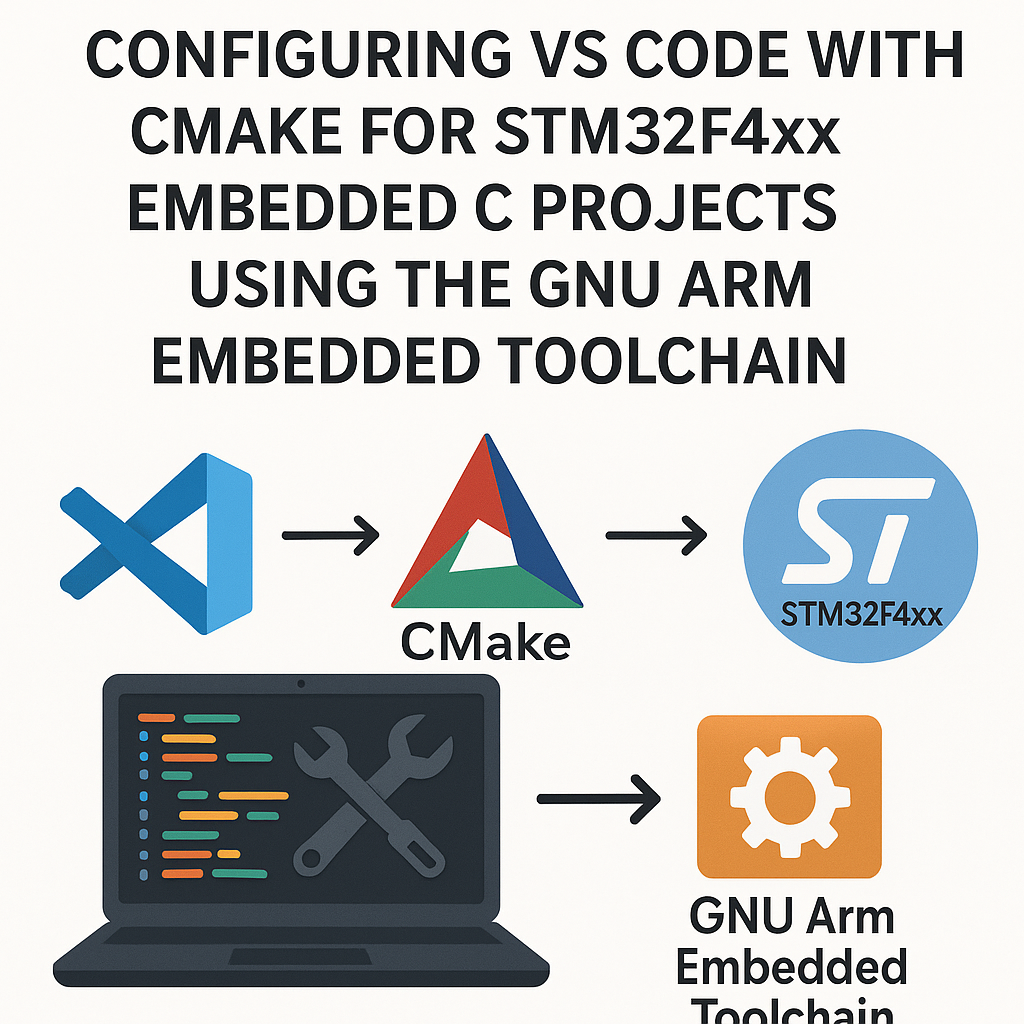
This guide gets you from zero to building and debugging STM32F4xx firmware in VS Code using CMake and the GNU Arm Embedded Toolchain.
Prerequisites
- Comfortable with embedded C (you know what a linker script does)
- VS Code installed
- CMake 3.20+ installed
- GNU Arm Embedded Toolchain (arm-none-eabi-gcc) installed and on your PATH
- STM32CubeMX (optional but helpful for generating peripheral init code and linker scripts)
Parts/Tools
- Computer running Windows, macOS, or Linux
- STM32F4xx development board (Nucleo, Discovery, or custom)
- ST-Link debugger (built into most Nucleo/Discovery boards)
- VS Code extensions: C/C++ (Microsoft), CMake Tools, Cortex-Debug
Steps
- Install the Required Software
- Grab VS Code if you don't have it.
- Install CMake (3.20 or newer). On macOS you can use
brew install cmake, on Ubuntusudo apt install cmake. - Download the GNU Arm Embedded Toolchain. Make sure
arm-none-eabi-gccis on your system PATH. Test it:arm-none-eabi-gcc --version. - Install these VS Code extensions:
- C/C++ (Microsoft) - IntelliSense and code navigation
- CMake Tools - CMake integration and build management
- Cortex-Debug - ARM Cortex-M debugging with GDB
- Create Your Project Structure
- Open VS Code, fire up the integrated terminal, and set up a project folder:
mkdir STM32F4_Project cd STM32F4_Project mkdir src inc - If you're using STM32CubeMX, generate your project now and grab the startup file (.s), linker script (.ld), and CMSIS/HAL sources. You'll need those for a real project. For this walkthrough, we'll keep it minimal.
- Open VS Code, fire up the integrated terminal, and set up a project folder:
- Set Up the CMake Toolchain File
This is where most people get tripped up. You need a separate toolchain file so CMake knows it's cross-compiling. Create
arm-toolchain.cmakein your project root:set(CMAKE_SYSTEM_NAME Generic) set(CMAKE_SYSTEM_PROCESSOR arm) set(CMAKE_C_COMPILER arm-none-eabi-gcc) set(CMAKE_CXX_COMPILER arm-none-eabi-g++) set(CMAKE_ASM_COMPILER arm-none-eabi-gcc) set(CMAKE_OBJCOPY arm-none-eabi-objcopy) set(CMAKE_OBJDUMP arm-none-eabi-objdump) set(CMAKE_SIZE arm-none-eabi-size) set(CMAKE_FIND_ROOT_PATH_MODE_PROGRAM NEVER) set(CMAKE_FIND_ROOT_PATH_MODE_LIBRARY ONLY) set(CMAKE_FIND_ROOT_PATH_MODE_INCLUDE ONLY) set(CMAKE_TRY_COMPILE_TARGET_TYPE STATIC_LIBRARY)That last line is key. Without it, CMake tries to link a test executable during configuration and fails because there's no standard C library available for the target.
- Write Your CMakeLists.txt
Create
CMakeLists.txtin the project root. Here's a working starting point for an STM32F4:cmake_minimum_required(VERSION 3.20) project(STM32F4_Project C ASM) set(MCU_FLAGS "-mcpu=cortex-m4 -mthumb -mfpu=fpv4-sp-d16 -mfloat-abi=hard") set(CMAKE_C_FLAGS "${CMAKE_C_FLAGS} ${MCU_FLAGS} -Wall -fdata-sections -ffunction-sections") set(CMAKE_EXE_LINKER_FLAGS "${CMAKE_EXE_LINKER_FLAGS} ${MCU_FLAGS} -Wl,--gc-sections -specs=nosys.specs -T${CMAKE_SOURCE_DIR}/STM32F4xxFLASH.ld") add_executable(${PROJECT_NAME}.elf src/main.c) target_include_directories(${PROJECT_NAME}.elf PRIVATE inc) # Generate .hex and .bin after build add_custom_command(TARGET ${PROJECT_NAME}.elf POST_BUILD COMMAND ${CMAKE_OBJCOPY} -O ihex $<TARGET_FILE:${PROJECT_NAME}.elf> ${PROJECT_NAME}.hex COMMAND ${CMAKE_OBJCOPY} -O binary $<TARGET_FILE:${PROJECT_NAME}.elf> ${PROJECT_NAME}.bin COMMAND ${CMAKE_SIZE} $<TARGET_FILE:${PROJECT_NAME}.elf> )Watch out: you'll need an actual linker script (
.ldfile) that matches your specific STM32F4 variant. STM32CubeMX generates one for you, or you can find templates in the STM32Cube firmware packages. - Create a Minimal main.c
- Drop a simple
src/main.cto verify your build chain works:#include <stdint.h> int main(void) { volatile uint32_t i; while (1) { for (i = 0; i < 100000; i++); } return 0; } - Don't use
printfin a bare-metal main unless you've set up a UART or semihosting. It'll just pull in a bunch of newlib and blow up your binary size.
- Drop a simple
- Configure VS Code for Debugging
Create a
.vscode/launch.jsonfor Cortex-Debug:{ "version": "0.2.0", "configurations": [ { "name": "STM32F4 Debug", "type": "cortex-debug", "request": "launch", "executable": "${workspaceFolder}/build/STM32F4_Project.elf", "servertype": "stlink", "device": "STM32F407VG", "interface": "swd", "cwd": "${workspaceFolder}", "runToEntryPoint": "main", "svdFile": "${workspaceFolder}/STM32F407.svd", "preLaunchTask": "build" } ] }Pro tip: grab the SVD file for your specific chip from ST's website. It gives Cortex-Debug the ability to show peripheral registers during debugging, which is incredibly useful.
Also create
.vscode/tasks.jsonso the preLaunchTask works:{ "version": "2.0.0", "tasks": [ { "label": "build", "type": "shell", "command": "cmake --build build", "group": "build", "problemMatcher": "$gcc" } ] } - Build and Flash
- Configure and build from the terminal:
cmake -S . -B build -DCMAKE_TOOLCHAIN_FILE=arm-toolchain.cmake cmake --build build - Or use the CMake Tools extension: open the Command Palette (Ctrl+Shift+P), select CMake: Select a Kit, choose your ARM GCC toolchain, then CMake: Build.
- To flash, connect your board and use OpenOCD or ST-Link utilities:
openocd -f interface/stlink.cfg -f target/stm32f4x.cfg -c "program build/STM32F4_Project.elf verify reset exit"
- Configure and build from the terminal:
Troubleshooting
- CMake can't find the compiler: Make sure
arm-none-eabi-gccis in your PATH. Runwhich arm-none-eabi-gcc(Linux/macOS) orwhere arm-none-eabi-gcc(Windows) to verify. - Linker errors about missing _exit, _sbrk, etc.: You're missing
-specs=nosys.specsin your linker flags. This provides stubs for system calls that don't exist on bare-metal. - Cortex-Debug won't connect: Check that your ST-Link firmware is up to date (use STM32CubeProgrammer to update it). Also verify you have OpenOCD or the ST-Link GDB server installed.
- IntelliSense showing red squiggles everywhere: Create a
.vscode/c_cpp_properties.jsonand point the include paths to your toolchain's include directory and your project headers.
Where to Go from Here
Once this basic setup is working, add your STM32 HAL or LL drivers, startup assembly file, and a proper linker script. If your project grows, consider using CMake's add_subdirectory or a structured src/ layout. For team projects, this CMake approach is a huge win over IDE-specific project files since everyone can use whatever editor they want.