How to Configure SWD Debugging for STM32F4 with ST-Link and Keil uVision
Why SWD Debugging Matters
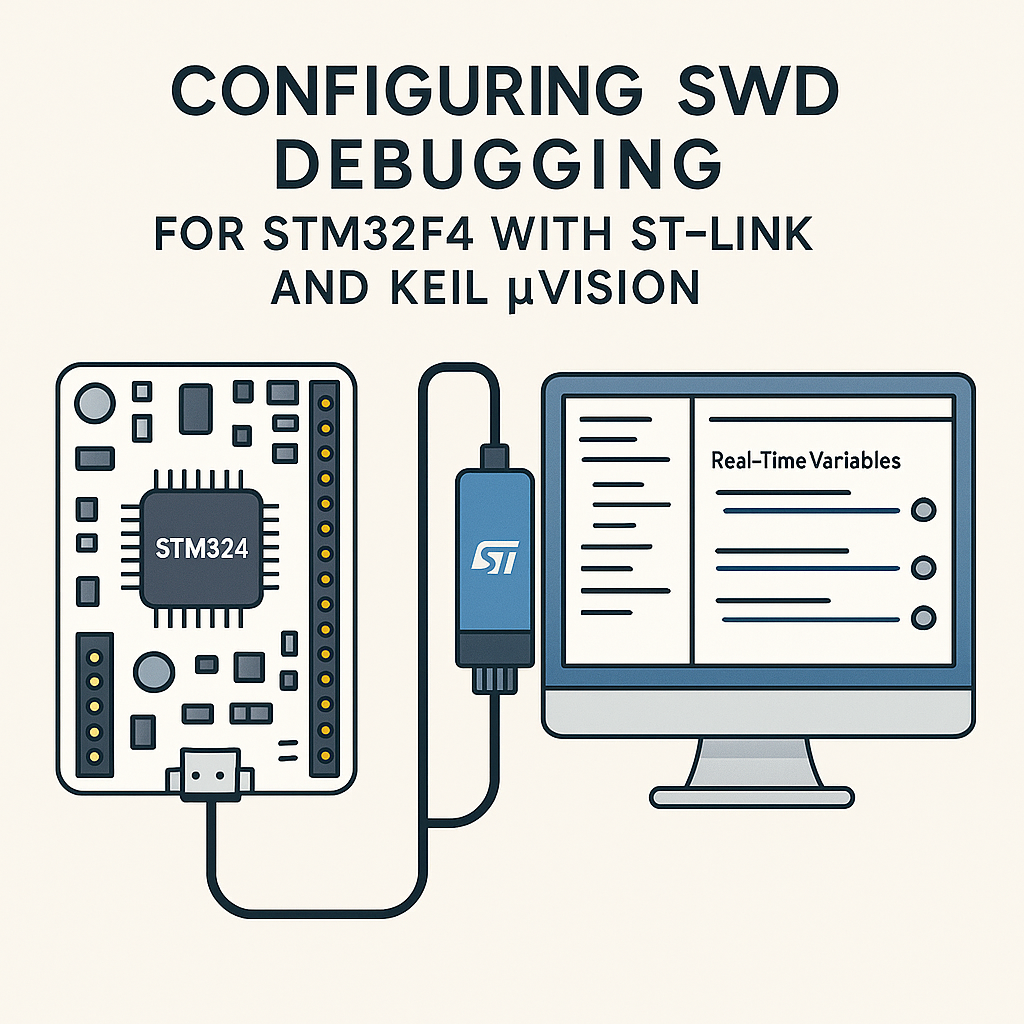
Printf debugging on a microcontroller is painful. You're guessing at what's happening inside your chip based on serial output and LED blinks. SWD (Serial Wire Debug) gives you something radically better: a live window into your STM32F4's internals. You can pause execution, inspect variables, step through code line by line, and watch memory change in real time.
ST-Link is the go-to debug probe for STM32 chips, and while STM32CubeIDE (v1.16+) is now the primary free IDE for STM32 development, Keil uVision remains a solid choice if you already have a license or prefer its debugger. Here's how to get SWD debugging working with that combo.
Prerequisites
- Working knowledge of embedded C and microcontroller basics
- An STM32F4 development board (Discovery, Nucleo, or custom)
- An ST-Link programmer/debugger (V2 or V3 -- many dev boards have one built in)
- Keil uVision MDK-ARM installed with the STM32F4 device pack
- STM32CubeMX for pin and peripheral configuration (optional but recommended)
Parts/Tools
- STM32F4 Development Board
- ST-Link V2 or V3 Programmer (or the one built into your Nucleo/Discovery board)
- USB Cable
- Keil uVision MDK-ARM
- STM32CubeMX (optional for peripheral initialization)
Steps
-
Install and Set Up Software
Download Keil uVision MDK-ARM from the ARM/Keil website. During installation, make sure you also install the STM32F4 device family pack through the Pack Installer -- Keil won't know about your chip without it.
If you plan to use STM32CubeMX to generate initialization code, grab that too. It can export projects directly in Keil format, which saves a lot of manual setup.
Tip: If you're starting fresh and don't have a Keil license, consider STM32CubeIDE (v1.16+) instead. It's free, has an integrated debugger with ST-Link support, and is now the primary IDE that ST maintains. The SWD debugging workflow is very similar.
-
Connect Your STM32F4 Board
If you're using a Nucleo or Discovery board, the ST-Link is built right in -- just plug in the USB cable and you're done. The SWD lines are already routed on the PCB.
If you're using a standalone ST-Link with a custom board, wire up these three signals:
- SWDIO to SWDIO on your target
- SWCLK to SWCLK on your target
- GND to GND on your target
That's really all you need. SWD only requires two data lines plus ground. Some people also connect the NRST (reset) line, which lets the debugger hard-reset the target -- useful if your firmware ever locks up the debug port.
Watch out: Make sure your target board is powered. The ST-Link doesn't supply enough current to run most STM32F4 boards through the SWD header alone.
-
Create a New Project in Keil uVision
- Open Keil uVision and go to Project > New uVision Project.
- Pick your exact STM32F4 variant from the device database (e.g., STM32F407VGTx).
- When prompted, add the CMSIS core and device startup files. At minimum you need the startup assembly file for your chip.
Alternatively, create your project in STM32CubeMX, configure your pins and clocks there, and export it as a Keil MDK-ARM project. This gives you all the HAL initialization code for free.
-
Configure the Debug Settings
This is the part that actually matters for SWD.
- Go to Project > Options for Target (or click the magic wand icon).
- Click the Debug tab.
- On the right side, select ST-Link Debugger from the dropdown (not the simulator).
- Click Settings next to the dropdown. In the dialog that opens:
- Set Port to SW (Serial Wire). This is the SWD mode.
- You should see your ST-Link's serial number and firmware version listed. If you don't, your connection has a problem.
- Set the Max Clock speed. 4 MHz is a safe default. You can push it higher (up to 24 MHz on ST-Link V3) if you need faster flash programming, but start conservative.
-
Enable Real-Time Variable Inspection
Keil's Watch window lets you monitor variables while the code is running, not just when halted at a breakpoint. To set this up:
- In the debug settings, make sure Enable is checked under the Trace tab (if available for your ST-Link version).
- During a debug session, right-click any variable in your source code and select Add to Watch Window.
- The Watch window will update values periodically while the target is running.
Gotcha: The compiler may optimize away variables you want to watch. If a variable keeps showing a stale value, declare it as
volatileor lower the optimization level to -O0 during debugging. -
Build and Flash
- Hit F7 (or click Build) to compile your project.
- Once it builds clean, click Load (or F8) to flash the binary onto your STM32F4 through the ST-Link.
You should see progress in the Build Output window. If flashing fails, check your ST-Link connection and make sure no other software (like STM32CubeProgrammer) is hogging the ST-Link.
-
Start Debugging
- Press Ctrl+F5 (or click the Debug icon) to enter debug mode.
- The code will halt at the start of
main()by default. From here you can set breakpoints, step through code, and inspect the Watch, Memory, and Register windows. - Press F5 to run. The Watch window will update variable values in real time.
Pro tip: Use conditional breakpoints for hard-to-reproduce bugs. Right-click a breakpoint and add a condition like
counter == 42. The debugger will only halt when that expression is true.
Troubleshooting
- Cannot Connect to ST-Link:
- Make sure the ST-Link USB drivers are installed. Run the ST-Link Firmware Upgrade utility to check.
- Verify your SWD wiring: SWDIO, SWCLK, and GND at minimum.
- Close any other programs that might be connected to the ST-Link (STM32CubeProgrammer, STM32CubeIDE, another Keil instance).
- Variables Not Updating in Real-Time:
- Declare variables as
volatileif they're modified in interrupts or by DMA. - Make sure you're not compiling with aggressive optimization (-O2, -O3). Use -O0 or -Og for debug builds.
- Some ST-Link V2 clones have issues with real-time watch. Try lowering the SWD clock speed.
- Declare variables as
- Project Won't Build:
- Check that you've installed the correct device pack for your STM32F4 variant.
- Verify the startup file matches your exact chip. Using the wrong startup file is a common mistake.
- Make sure the include paths point to the CMSIS and HAL header directories.
Where to Go from Here
Once you have basic SWD debugging working, explore Keil's more advanced features: the Logic Analyzer window can plot variable values over time, the ITM (Instrumented Trace Macrocell) gives you printf-style output without needing a UART, and the Performance Analyzer shows you where your code spends the most time. SWD debugging turns embedded development from guesswork into something you can actually reason about.