How to Configure OpenOCD for STM32F4 SWD Debugging with ST-Link
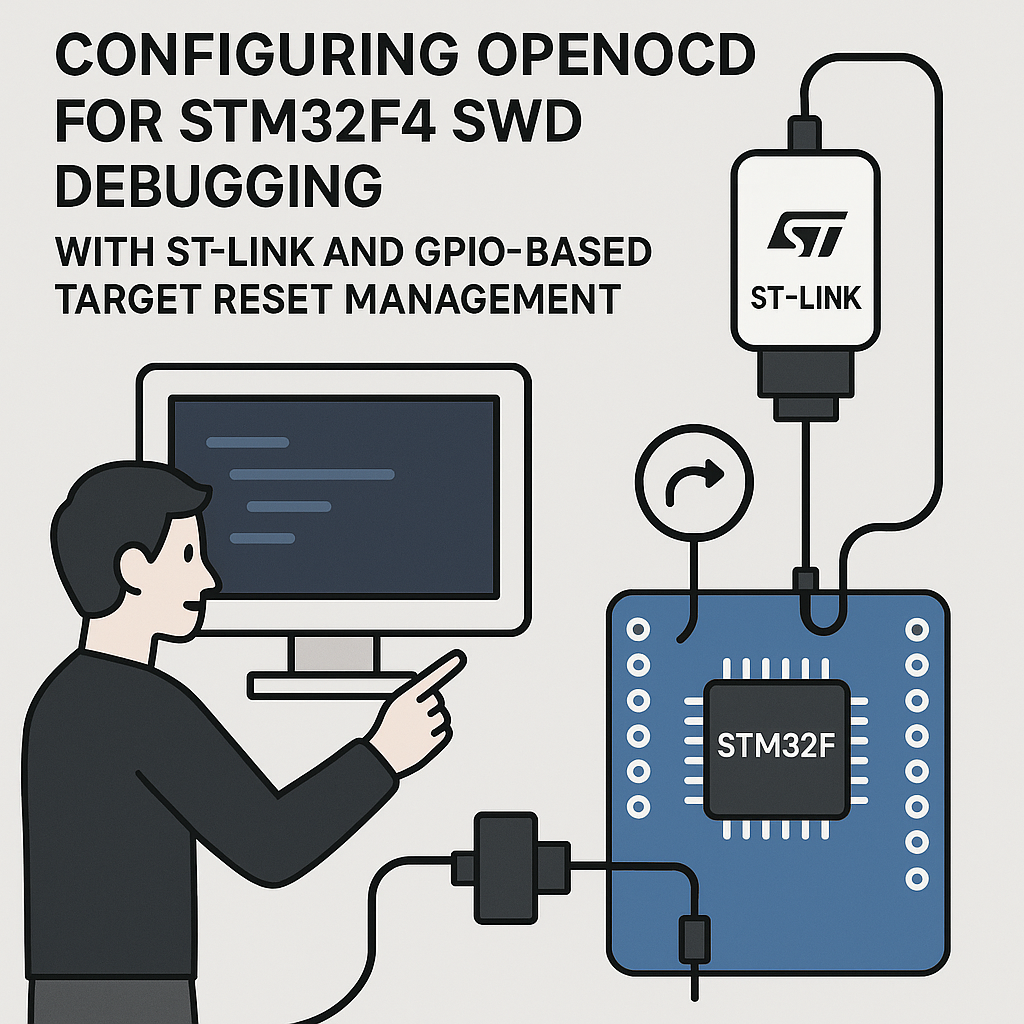
OpenOCD + STM32F4 + ST-Link: Getting SWD Debugging Working
If you've ever been stuck with printf debugging on an STM32, OpenOCD is your way out. It's a free, open-source on-chip debugger that talks to your microcontroller through ST-Link over SWD (Serial Wire Debug). Once configured, you get full breakpoint debugging, memory inspection, and flash programming — all from your favorite IDE or even from the command line with GDB.
This guide walks through the full setup: wiring ST-Link to an STM32F4 board, writing the OpenOCD config, and implementing GPIO-based target reset management. That last part is useful when you're debugging multi-board setups or need programmatic control over a target's reset line.
Prerequisites
- Working knowledge of STM32 development and basic debugging concepts
- An STM32F4 board (STM32F407 Discovery, Nucleo-F446RE, or similar)
- ST-Link V2, V3, or the on-board ST-Link on a Nucleo/Discovery board
- OpenOCD installed (v0.12+ recommended)
- Development environment — STM32CubeIDE v1.16+, VS Code with the Cortex-Debug extension, or just a terminal with arm-none-eabi-gdb
Parts and Tools
- STM32F4 microcontroller board
- ST-Link V2 or V3 programmer (or the built-in one on Nucleo/Discovery boards)
- Jumper wires for SWD and GPIO connections
- OpenOCD (install via your package manager:
apt install openocd,brew install openocd, or download from openocd.org) - Terminal or command prompt
Steps
- Wire Up the Hardware
If you're using a standalone ST-Link V2 with a separate STM32F4 board, connect these four lines:
- SWDIO — data line (bidirectional)
- SWCLK — clock line
- GND — ground (always connect this, even if both boards share a USB ground — flaky debug sessions often trace back to a missing ground wire)
- 3.3V — only needed if the target board isn't self-powered
If you're using a Nucleo or Discovery board, the ST-Link is already wired to the target MCU. You can skip this step.
For the GPIO reset management feature, also connect a GPIO pin (we'll use PC13 in this example) from the STM32F4 to the nRST (reset) line of your target board.
- Install OpenOCD
On Ubuntu/Debian:
sudo apt install openocdOn macOS with Homebrew:
brew install openocdOn Windows, grab the pre-built binaries from the OpenOCD GitHub releases page and add the bin directory to your PATH.
Verify the install:
openocd --versionYou want v0.12 or newer. Older versions have spotty support for newer ST-Link firmware.
- Write the OpenOCD Configuration
Create a file called
stm32f4.cfgwith the following content:source [find interface/stlink.cfg] transport select swd set WORKAREASIZE 0x4000 source [find target/stm32f4x.cfg] reset_config srst_only # Increase adapter speed if you want faster flash programming. # 4000 kHz works reliably for most setups. adapter speed 4000A few things to note here:
stlink.cfgauto-detects whether you have a V2 or V3 — you don't need to specify the version.WORKAREASIZEsets how much target SRAM OpenOCD can use as scratch space during flash operations. 16KB (0x4000) is a safe default for F4 parts.srst_onlytells OpenOCD to use only the system reset line, not JTAG reset. This is the right setting for SWD.- Bumping adapter speed to 4000 kHz noticeably improves flash download times. If you get connection errors, drop it to 1000.
- Set Up GPIO-Based Reset Management
This is for scenarios where you need one STM32 to programmatically reset another board — useful in test rigs, multi-MCU systems, or automated flashing setups.
In your STM32F4 firmware, configure a GPIO pin as an output and toggle it to control the target's reset line:
#include "stm32f4xx_hal.h"

void GPIO_Reset_Init(void) {
    __HAL_RCC_GPIOC_CLK_ENABLE();

    GPIO_InitTypeDef gpio = {0};
    gpio.Pin = GPIO_PIN_13;
    gpio.Mode = GPIO_MODE_OUTPUT_PP;
    gpio.Pull = GPIO_NOPULL;
    gpio.Speed = GPIO_SPEED_FREQ_LOW;
    HAL_GPIO_Init(GPIOC, &gpio);

    // Start with reset line high (not asserted)
    HAL_GPIO_WritePin(GPIOC, GPIO_PIN_13, GPIO_PIN_SET);
}

void Reset_Target(void) {
    // Pull reset low
    HAL_GPIO_WritePin(GPIOC, GPIO_PIN_13, GPIO_PIN_RESET);
    HAL_Delay(10); // Hold for 10ms
    // Release reset
    HAL_GPIO_WritePin(GPIOC, GPIO_PIN_13, GPIO_PIN_SET);
}
Watch out: the target's nRST line is typically active-low with an internal pull-up. Driving it with a push-pull output works, but if the target has a strong pull-up, you might need an open-drain output with a more assertive pull-down. Check your target board's schematic.
- Launch OpenOCD
Open a terminal in the directory containing your config file and run:
openocd -f stm32f4.cfgA successful launch looks something like this:
Info : STLINK V2J37S7 (API v2) VID:PID 0483:3748
Info : stm32f4x.cpu: hardware has 6 breakpoints, 4 watchpoints
Info : Listening on port 3333 for gdb connections
Info : Listening on port 4444 for telnet connections
If it hangs or throws errors, see the troubleshooting section below.
- Connect Your Debugger
With OpenOCD running, connect to it from your debugger of choice:
- GDB from terminal:
arm-none-eabi-gdb your_firmware.elf, thentarget remote localhost:3333 - STM32CubeIDE: Set up a debug configuration using GDB Hardware Debugging, point it at localhost:3333
- VS Code + Cortex-Debug: Add an OpenOCD server type in your
launch.jsonand pointconfigFilesto your cfg
From GDB, you can issue
monitor reset haltto reset the target and stop at the reset vector,loadto flash your firmware, andcontinueto run. - GDB from terminal:
Troubleshooting
- "Error: open failed" or no connection to target:
- Double-check the SWD wires. A loose SWDIO or SWCLK connection is the most common cause.
- Make sure ST-Link drivers are installed. On Linux, you may need udev rules — OpenOCD usually ships with a
60-openocd.rulesfile you can copy to/etc/udev/rules.d/. - If another tool (like STM32CubeIDE's built-in debugger or STM32CubeProgrammer) is holding the ST-Link, close it first. Only one process can talk to the ST-Link at a time.
- Target not resetting:
- Verify the GPIO pin is actually toggling with an oscilloscope or logic analyzer.
- Check that the GPIO clock is enabled — forgetting
__HAL_RCC_GPIOx_CLK_ENABLE()is a classic STM32 mistake. The pin will appear to be configured but won't actually do anything. - Make sure the reset line connection is solid and goes to nRST, not some other pin.
- OpenOCD errors about adapter speed:
- Drop
adapter speedto 1000 or even 500. Long jumper wires or noisy setups can't handle high SWD clock rates.
- Drop
- "Target voltage may be too low":
- The ST-Link is reading the target's voltage through its sense pin. Make sure the target is actually powered and the 3.3V reference is connected.
Summary
OpenOCD with ST-Link over SWD gives you a free, powerful debugging setup for STM32F4 projects. The config is minimal once you get it right, and the GPIO reset management trick is handy for automated testing and multi-board setups. If you're still debugging with printf over UART, do yourself a favor and set this up — breakpoints and memory inspection will save you hours.